Appearance
Using ODBC | JDBC
WP Data Access supports remote database connections through ODBC and JDBC for WordPress installations running on MariaDB. Servers running WordPress on MySQL can use a remote MariaDB connection. This feature allows you to connect to SQL Server, Oracle, PostgreSQL, MongoDB, and other DBMSs from your WordPress dashboard, which enables users to use Data Tables, Data Projects, and other WP Data Access tools with foreign databases.
Setup for WordPress on MariaDB
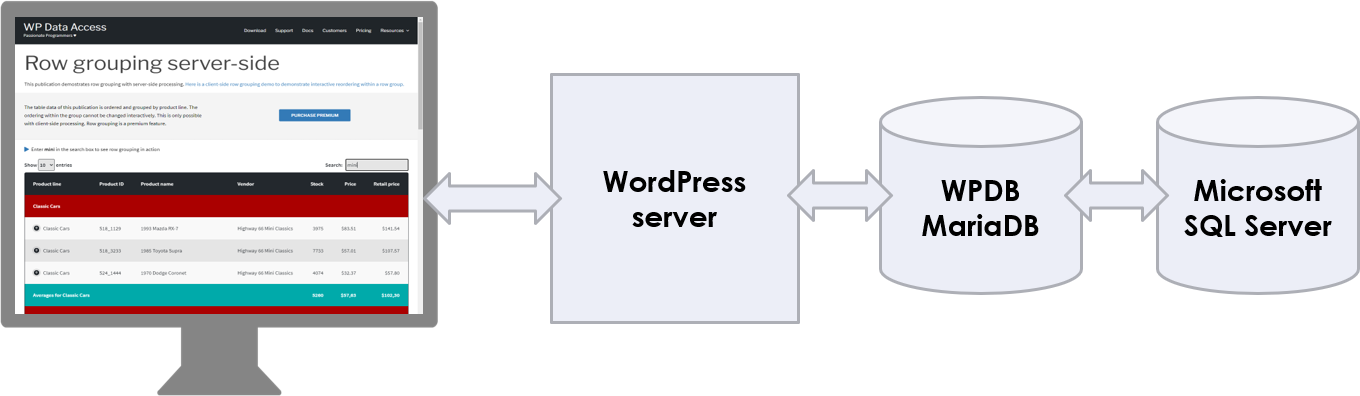
This setup uses an ODBC or JDBC connection between a local MariaDB (= your local WordPress database) and Microsoft SQL Server.
Setup for WordPress on MySQL
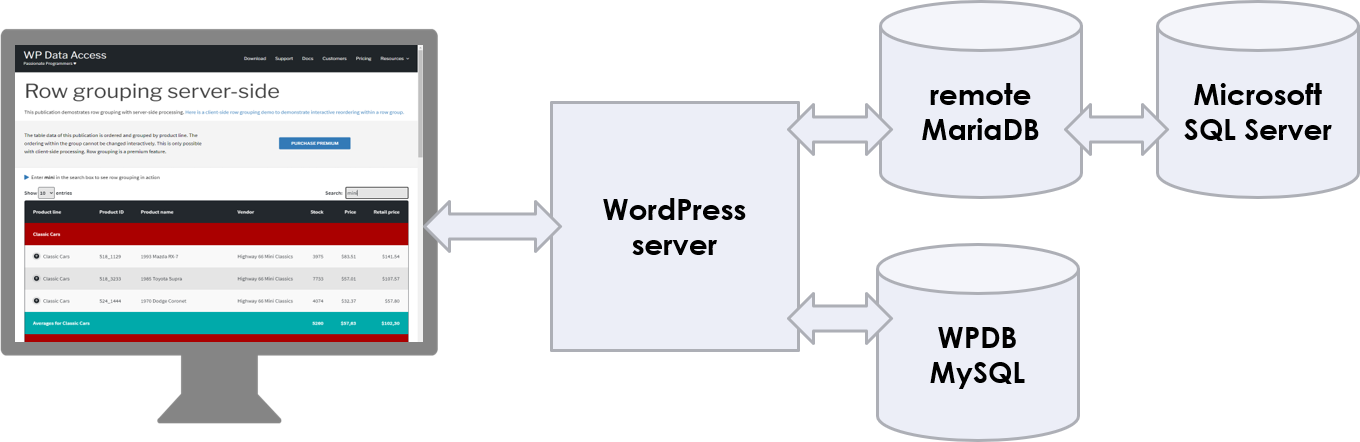
This setup uses an ODBC or JDBC connection between a remote MariaDB and Microsoft SQL Server.
Prerequisites
- Full MariaDB and OS admin privileges.
- For MariaDB: install the CONNECT storage engine.
- For the OS: install ODBC | JDBC drivers.
- The foreign DBMS must be reachable from the WPDA or the remote MariaDB instance.
- This feature must be configured manually.
Install the CONNECT storage engine
The MariaDB CONNECT storage engine installation requires SUPER privileges!
The CONNECT storage engine is only available for MariaDB. MySQL does not support this feature. Use a remote MariaDB to connect to ODBC | JDBC if your WordPress server is running on MySQL.
(1) Make sure you are on MariaDB
- MySQL does not support the CONNECT storage engine.
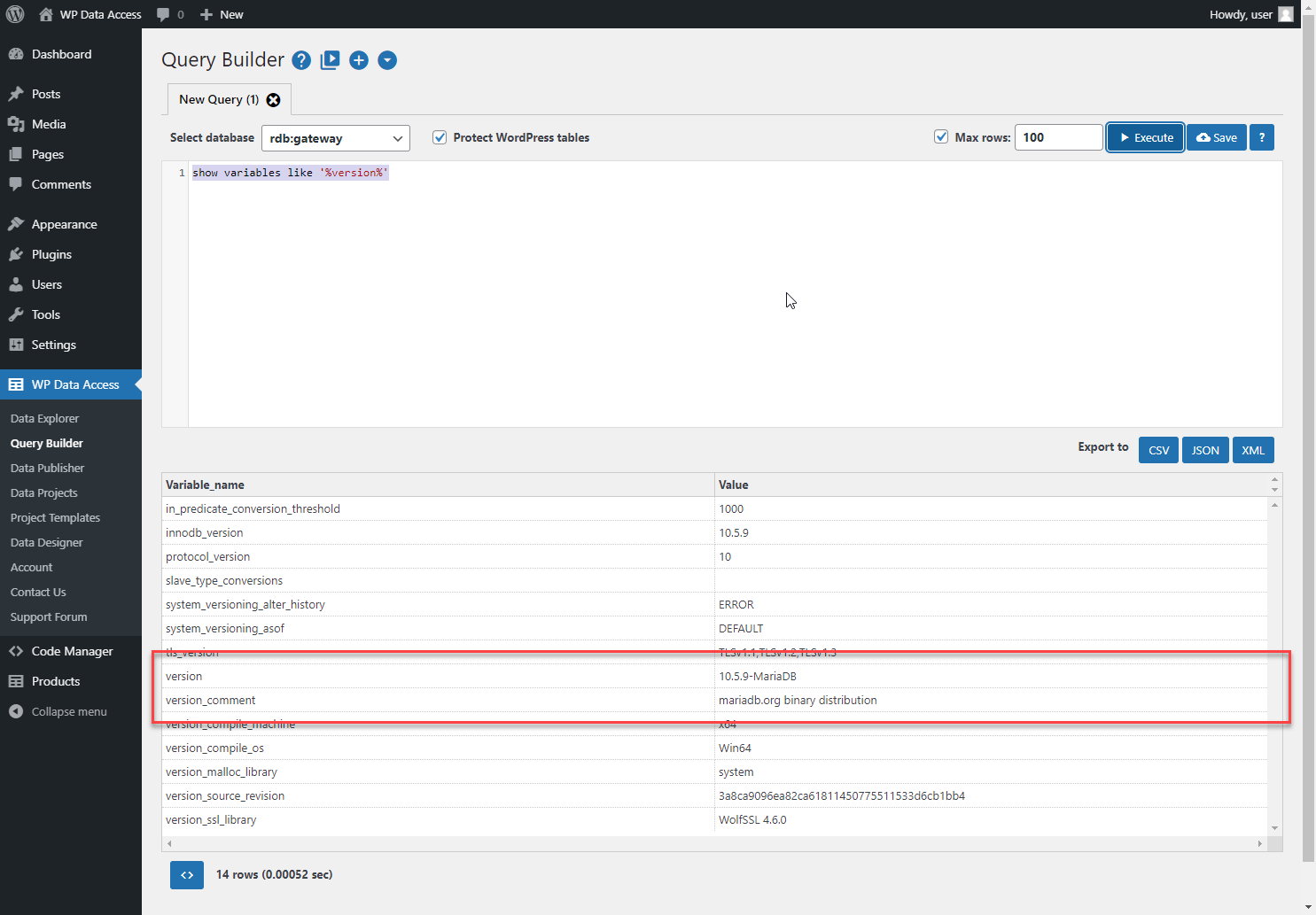
(2) Check if the CONNECT storage engine is already installed
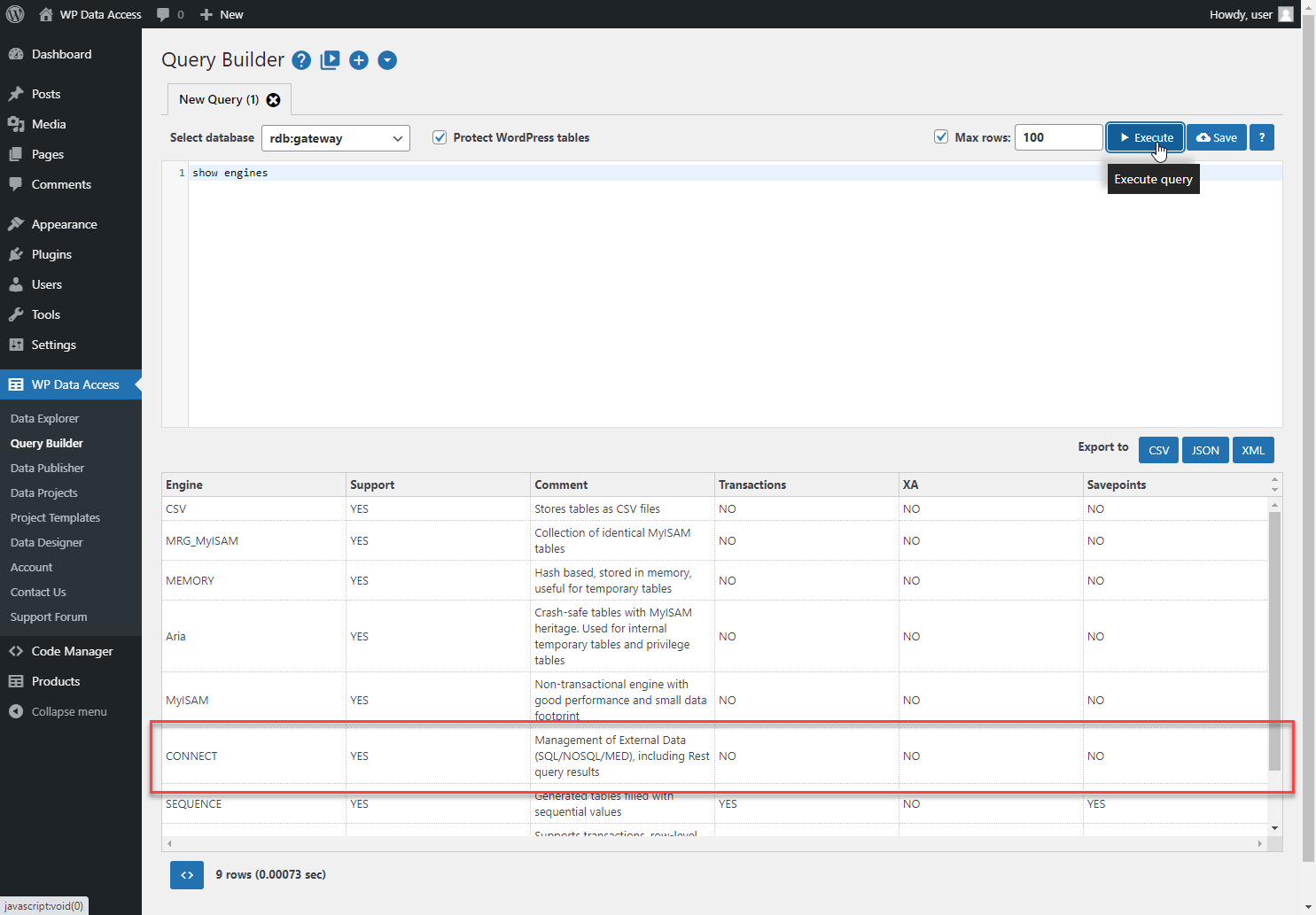
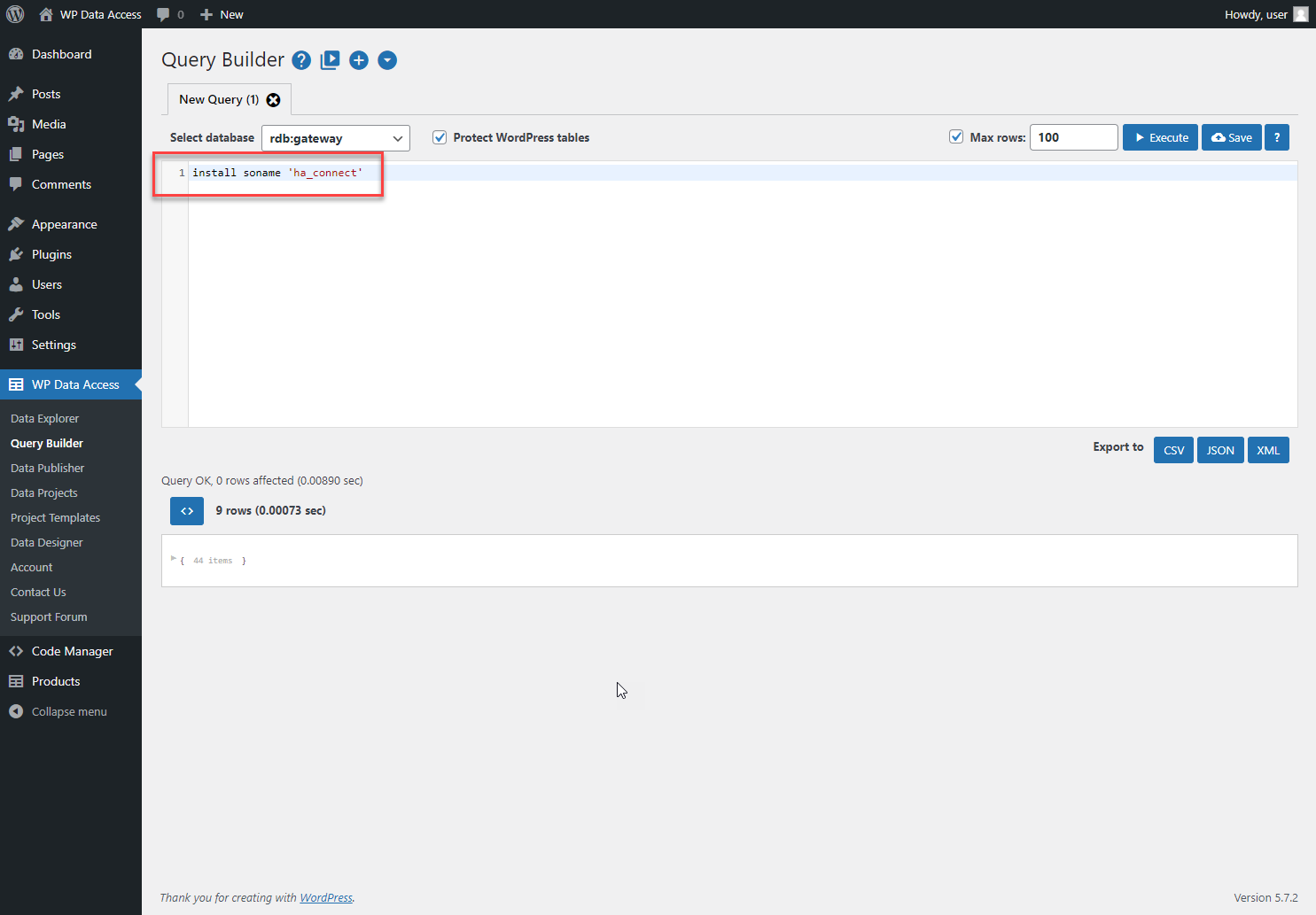
(3) Install the CONNECT storage engine
- Requires
SUPERprivilege on MariaDB. - On Linux, shared libraries need to be installed first. (read more…)
ODBC or JDBC?
With the CONNECT storage engine installed, connections to foreign DBMSs can be established using ODBC or JDBC. Whether you want to use ODBC or JDBC is up to you. Personally, I found the ODBC installation very simple on both Linux and Windows. I got it working right away. The JDBC installation was much more of a headache, with a Java SDK that was not able to find the necessary resources. It took me a lot of time to get this working on both Linux and Windows.
Using ODBC
Install ODBC drivers
Prerequisites
- Full OS admin privileges are required on the server running your MariaDB instance.
- On Linux, unixODBC must be installed.
ODBC drivers need to be installed on the server that runs your local or remote MariaDB instance!
> Read more than you need to know about the CONNECT ODBC table type…
There is no "install them all" solution that lets you connect to any foreign database. At this stage, you have to decide to which foreign database you want to connect. Each DBMS needs its own ODBC driver installation. If you need to connect to multiple foreign databases, you need to install a driver for each DBMS.
Install SQL Server ODBC drivers
Find the drivers for your OS. The search for “sql server odbc driver download” returns the following link, which contains all information needed to install the ODBC drivers for SQL Server (Windows, Linux, and macOS).
> Download ODBC Driver for SQL Server…
Follow the installation instructions of the ODBC driver provider.
Examples
✨ Connecting to a foreign DBMS using ODBC with auto column detection
After installing the CONNECT storage engine and ODBC or JDBC drivers, you can create a CONNECT table to access the remote database.
sql
CREATE TABLE products
ENGINE='CONNECT'
TABLE_TYPE='ODBC'
TABNAME='products'
CONNECTION='Driver={ODBC Driver 17 for SQL Server};Server=192.168.178.58;Database=wpda;Uid=wpda;Pwd=wpda;'
📌 Creates a read-only table named products, available in all WP Data Access tools.
- Perfect for data tables.
- Requires a primary or unique key to support transactions.
✨ Connecting to a foreign DBMS using ODBC with manual column definitions
sql
CREATE TABLE products_odbc (
  productCode varchar(15) NOT NULL,
  productName varchar(70) NOT NULL,
  productLine varchar(50) NOT NULL,
  productScale varchar(10) NOT NULL,
  productVendor varchar(50) NOT NULL,
  productDescription varchar(16000) NOT NULL,
  quantityInStock smallint NOT NULL,
  buyPrice decimal(10,2) NOT NULL,
  MSRP decimal(10,2) NOT NULL,
  PRIMARY KEY (productCode)
)
ENGINE='CONNECT'
TABLE_TYPE='ODBC'
TABNAME='products'
CONNECTION='Driver={ODBC Driver 17 for SQL Server};Server=192.168.178.58;Database=wpda;Uid=wpda;Pwd=wpda;'
📌 Creates a table named products which is editable in WP Data Access.
Using JDBC
Install JDBC drivers
Prerequisites
- Full OS admin privileges are required on the server running your MariaDB instance.
- A Java SDK must be installed.
- Java wrapper class files must be installed and accessible.
- JDBC drivers files must be installed and accessible.
JDBC drivers need to be installed on the server that runs your local or remote MariaDB instance!
> Read all you need to know about the CONNECT JDBC table type…
There is no "install them all" solution that lets you connect to any foreign database. At this stage, you have to decide to which foreign database you want to connect. Each DBMS needs its own JDBC driver installation. If you need to connect to multiple foreign databases, you need to install a driver for each DBMS.
Install SQL Server JDBC drivers
Find the drivers for your OS. The search for "sql server jdbc driver download" returns the following link, which contains all information needed to install the JDBC drivers for SQL Server (Windows, Linux, and macOS).
> Download JDBC Driver for SQL Server…
Follow the installation instructions of the JDBC driver provider.
Examples
✨ Add JDBC Driver to php.ini
With the following line added to the my.ini file, the MariaDB server was able to find the JDBC driver:
[mysqld]
connect_class_path=C:/Program Files/sqljdbc_9.2/enu/mssql-jdbc-9.2.1.jre8.jar
✨ Connecting to a foreign DBMS using JDBC with auto column detection
sql
CREATE TABLE products
ENGINE='CONNECT'
TABLE_TYPE='JDBC'
TABNAME='products'
CONNECTION='jdbc:sqlserver://192.168.178.58:1433;databasename=wpda;user=wpda;password=wpda'
📌 Creates a read-only table named products, available in all WP Data Access tools.
- Perfect for data tables.
- Requires a primary or unique key to support transactions.
✨ Connecting to a foreign DBMS using JDBC with manual column definitions
sql
CREATE TABLE products_jdbc (
productCode varchar(15) NOT NULL,
productName varchar(70) NOT NULL,
productLine varchar(50) NOT NULL,
productScale varchar(10) NOT NULL,
productVendor varchar(50) NOT NULL,
productDescription varchar(16000) NOT NULL,
quantityInStock smallint NOT NULL,
buyPrice decimal(10,2) NOT NULL,
MSRP decimal(10,2) NOT NULL,
PRIMARY KEY (productCode)
)
ENGINE='CONNECT'
TABLE_TYPE='JDBC'
TABNAME='products'
CONNECTION='jdbc:sqlserver://192.168.178.58:1433;databasename=wpda;user=wpda;password=wpda'
QUOTED=1
📌 Creates a table named products which is editable in WP Data Access.
Features and Limitations
Tables created in the simple ODBC and JDBC examples:
- Are supported in all WP Data Access tools.
- Do not contain any data (no replication).
- Can have a different structure than the original table.
- Are read-only (perfect for data tables).
- Need a primary key to make them editable in WP Data Access (to support data management for Data Projects).
Table Structure
With the simple ODBC | JDBC examples, MariaDB creates a CONNECT table from the remote table structure. If a table contains basic data types only, chances are that the structures of the tables are the same on both sides. Since not all data types are supported, MariaDB might need to convert some of them. For example, the TEXT data type is not supported. MariaDB will convert TEXT to VARCHAR. The CONNECT storage engine supports the explicit definition of a table structure to close this gap. The explicit table structure definition is demonstrated in the more detailed ODBC | JDBC examples below.
> Read more about supported data types...
Always compare your MariaDB table structure with the original remote table structure if you want to use a table in a Data Project and make it editable. If the data types of your columns in MariaDB do not match those of the remote table, you risk losing data.
Editable ODBC | JDBC Tables
Tables of foreign remote databases can be used in Data Projects just like local tables. To enable transactions on these tables, the plugin needs a primary or unique key. With the simple ODBC | JDBC examples mentioned earlier, MariaDB creates a table without knowing about these keys. The CONNECT storage engine allows us to not only add our own structure (as mentioned above) but also to add a primary key column.
📌 Important
Regarding the ODBC | JDBC examples with manual column definitions:
The following example shows the original table structure on SQL Server:
sql
CREATE TABLE [dbo].[products](
	[productCode] [varchar](15) NOT NULL,
	[productName] [varchar](70) NOT NULL,
	[productLine] [varchar](50) NOT NULL,
	[productScale] [varchar](10) NOT NULL,
	[productVendor] [varchar](50) NOT NULL,
	[productDescription] [text] NOT NULL,
	[quantityInStock] [smallint] NOT NULL,
	[buyPrice] [decimal](10, 2) NOT NULL,
	[MSRP] [decimal](10, 2) NOT NULL,
PRIMARY KEY CLUSTERED
(
	[productCode] ASC
)WITH (PAD_INDEX = OFF, STATISTICS_NORECOMPUTE = OFF, IGNORE_DUP_KEY = OFF, ALLOW_ROW_LOCKS = ON, ALLOW_PAGE_LOCKS = ON, OPTIMIZE_FOR_SEQUENTIAL_KEY = OFF) ON [PRIMARY]
) ON [PRIMARY] TEXTIMAGE_ON [PRIMARY]
Most columns of the products table have similar data types on Microsoft SQL Server and MariaDB. However, column productDescription does not. The original column on Microsoft SQL Server has a TEXT data type. The MariaDB CONNECT storage engine does not support this data type. In the manual example, we converted it to varchar(16000). If you do not explicitly define the data type for this column, MariaDB will do an implicit conversion. In my case, the productDescription was implicitly converted to varchar(1000). MariaDB cuts the column values to that size. For data tables, you are “just missing some data.“ For data management, you might lose data!!!
Security
With ODBC | JDBC connections to foreign databases, there are at least two DBMSs involved. Please check the link below for the connection between your WordPress server and your MariaDB instance:
> Restricting access, sensitive data and SSL
The connection between your MariaDB instance and your foreign DBMS needs attention as well, especially if they are installed on different servers. Discussing all the different options for all foreign DBMSs is outside the scope of this topic. Here is a minimal checklist:
- Prevent users from being able to connect (grant access to specific server IP addresses only).
- Is your data sensitive? (use SSL).
- Minimize access to the connecting account (no DCL and DDL, only DML SELECT for read-only access).
Resources
- https://mariadb.com/kb/en/installing-the-connect-storage-engine/
- https://mariadb.com/kb/en/connect/
- https://mariadb.com/kb/en/connect-table-types/
- https://mariadb.com/kb/en/connect-data-types/
- https://mariadb.com/kb/en/connect-odbc-table-type-accessing-tables-from-another-dbms
- https://mariadb.com/kb/en/connect-jdbc-table-type-accessing-tables-from-another-dbms/
Share your Knowledge and Experience
I’ve been working with remote databases since 1993. It has always been one of my favorite database subjects. I just love to connect things!
It feels really great to add this feature to WP Data Access and allow WordPress users to connect to any foreign database from the dashboard. You don’t need the premium version. This works with the free version as well.
This is a tough subject! A lot of things can go wrong. Please share your questions and solutions to help other plugin users. That’s how we learn! From each other…
LET’S CONNECT 🙂