Appearance
Synchronization
When you use the remote connection wizard to upload a data file, the plugin creates a corresponding database table. As your data files change over time, you can synchronize them with your database table in two ways:
- Manual synchronization
- Automatic synchronization
Manual Synchronization
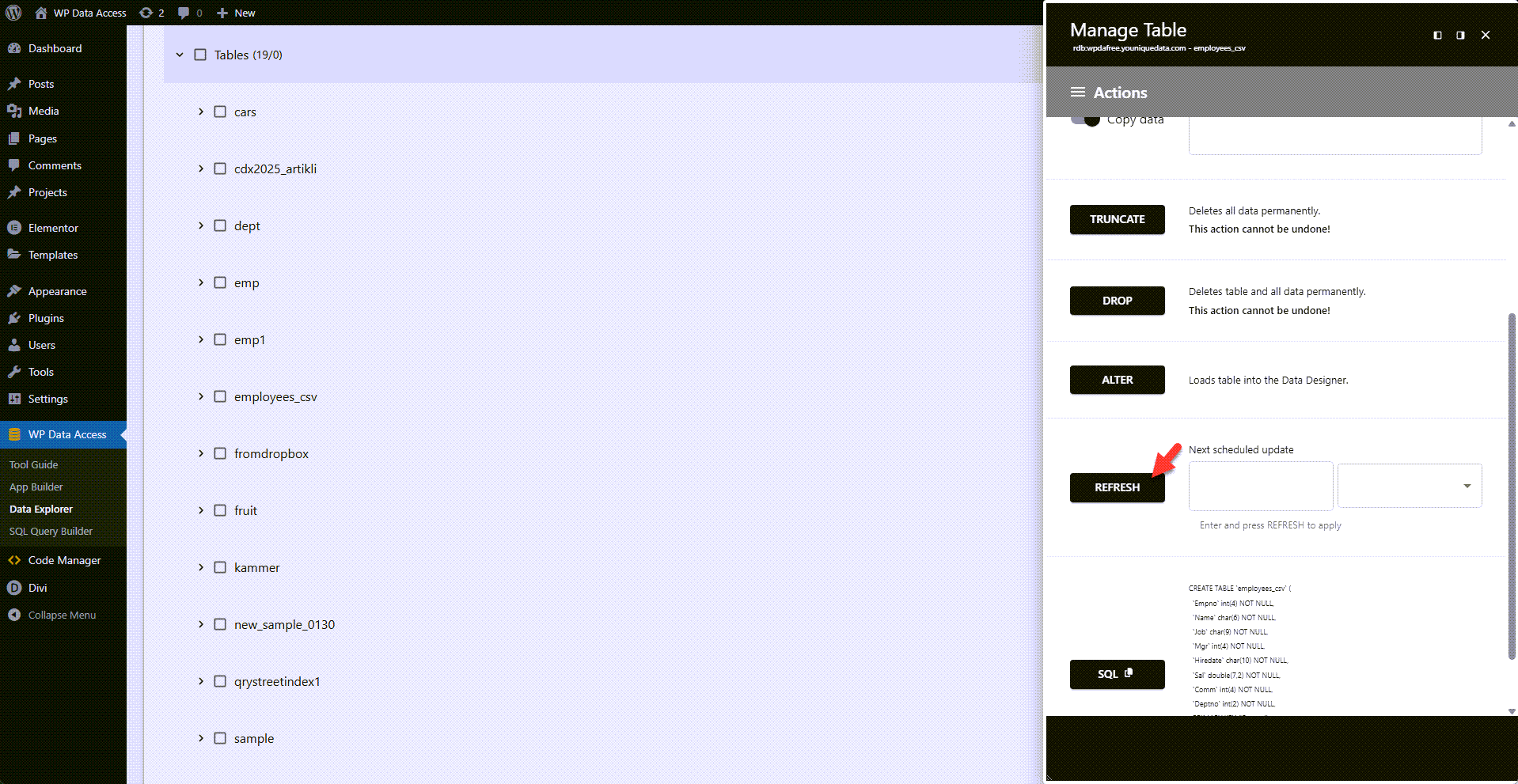
To immediately refresh your database table after changing your data file:
- Start the Data Explorer.
- Click the manage link of the table you want to refresh.
- Click the REFRESH button.
- That’s all.
Next Schedule Update
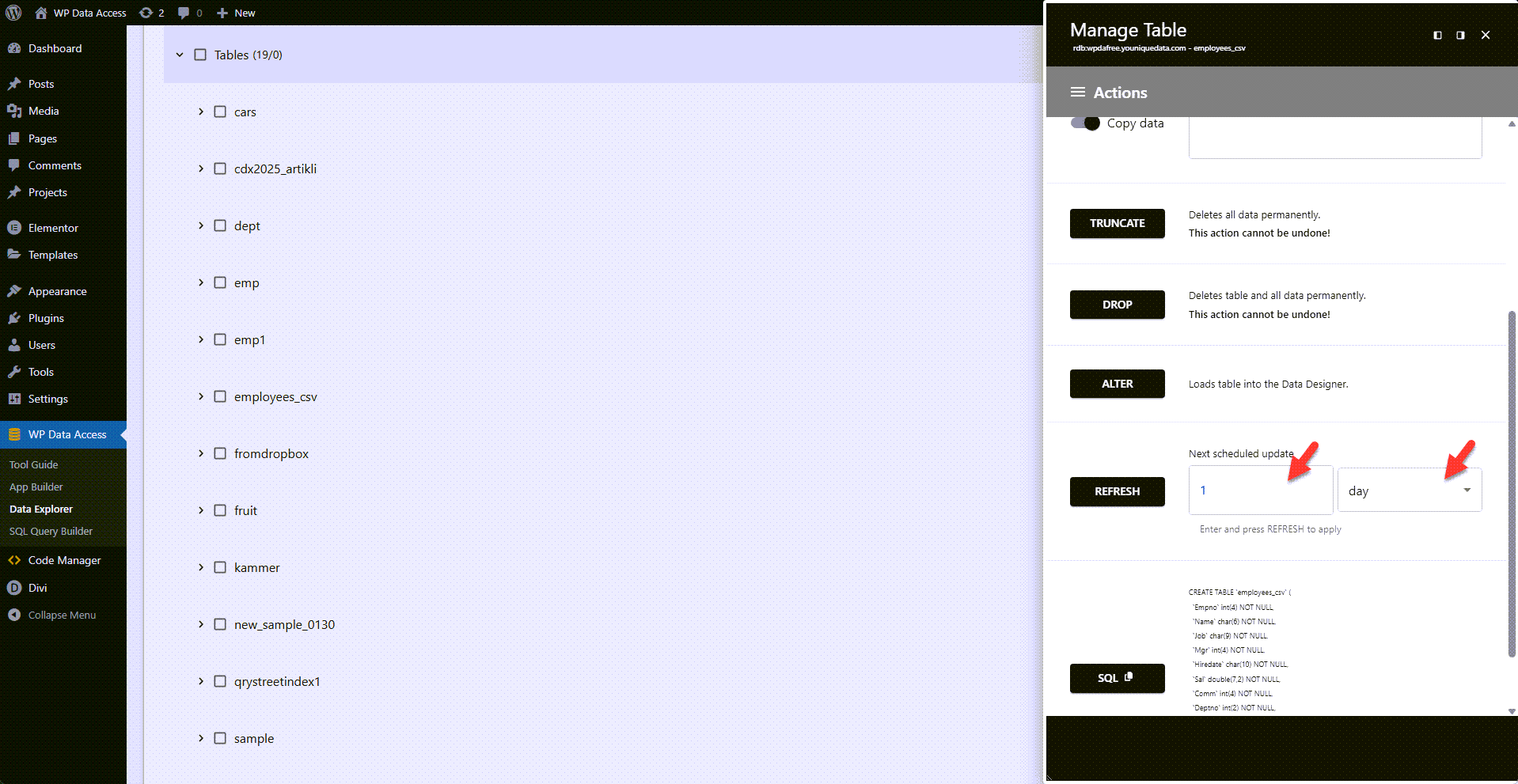
You can also view or change the next scheduled update by clicking the icon next to the remote file URL.
Automatic Synchronization
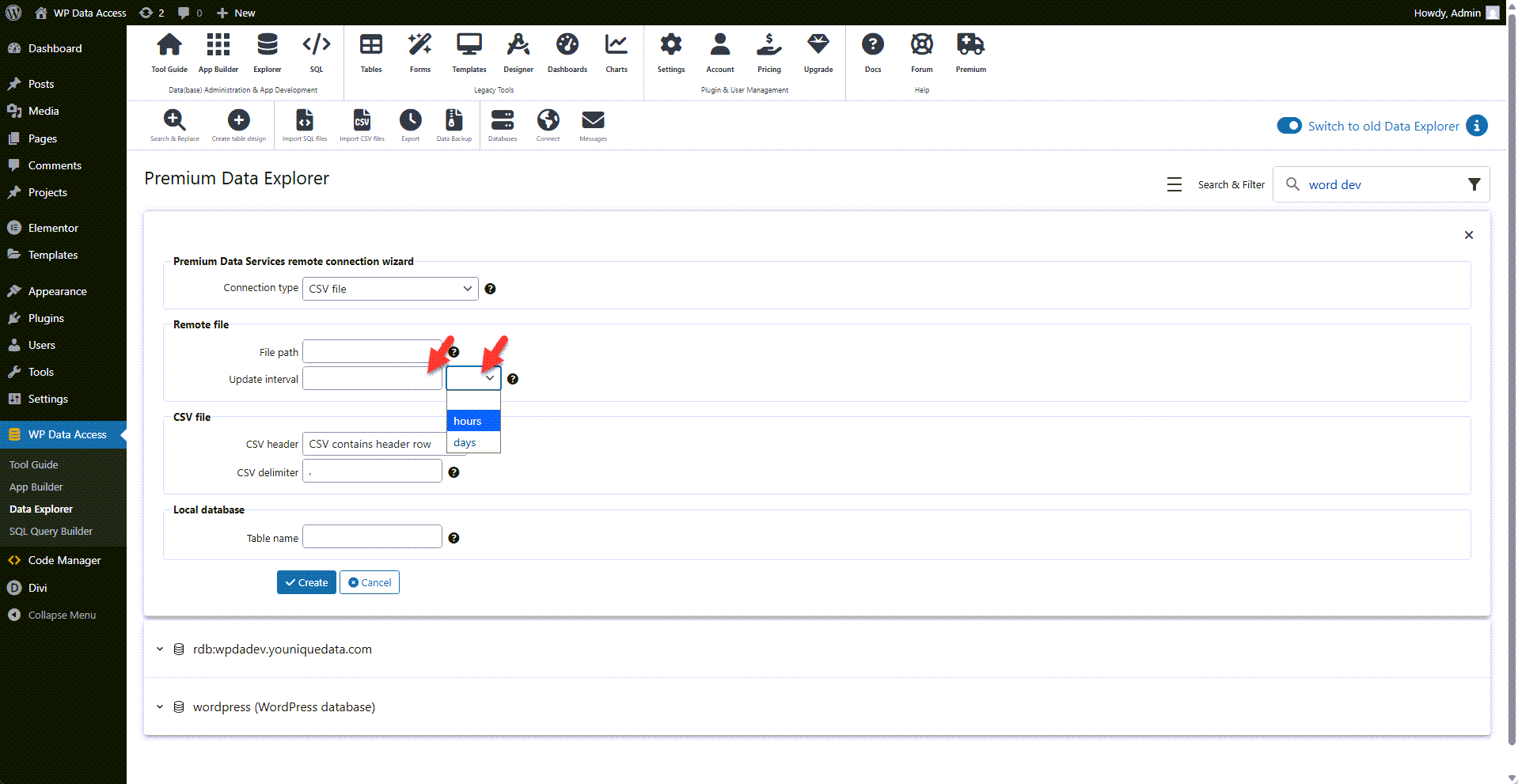
Automatic synchronization runs unattended at configurable intervals. If an error occurs during this process, the old data is restored, and an error message is sent to your message box. Be sure to check for any errors and take action if needed.
Defining Automatic Synchronization on Table Creation
Automatic Synchronization Redefined
Notes
- Synchronization requires the public URL for your data file to remain accessible.
- Synchronization is one-way only (from the remote data file to the database table).
- You can register your email address with your account to receive errors and messages via email. (Read more…)