Appearance
Errors & Messages
Every action performed on the data server is logged. The Messages icon in the toolbar indicates your message status: it turns green when you have unread messages and red when you have unread errors. Clicking the icon opens a widget where you can view your messages, as shown in the screenshot below.
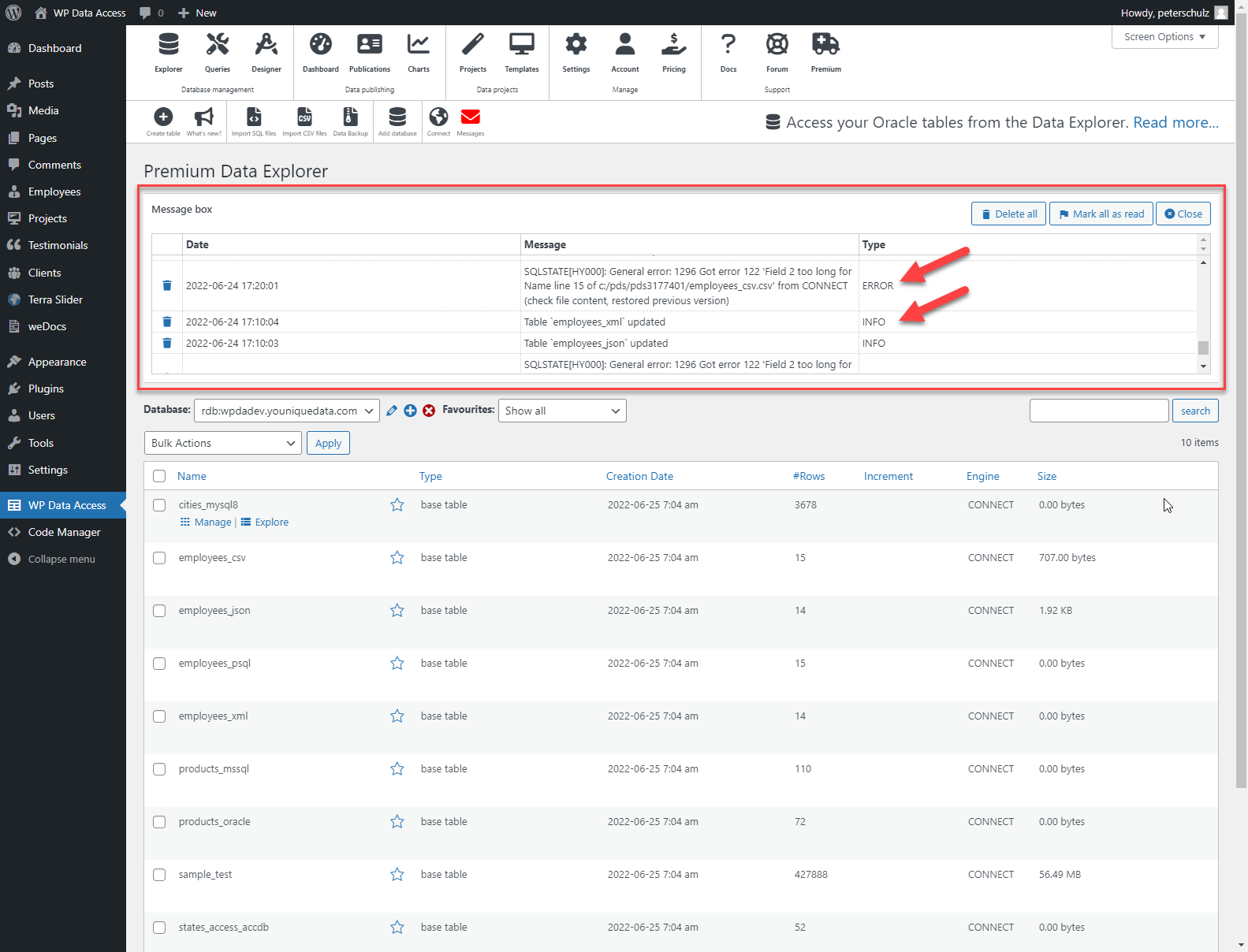
If an action is completed successfully, you will see an INFO message. If an action results in an error, you will see an ERROR message, which will require you to take action.
Receiving Messages and Errors via Email
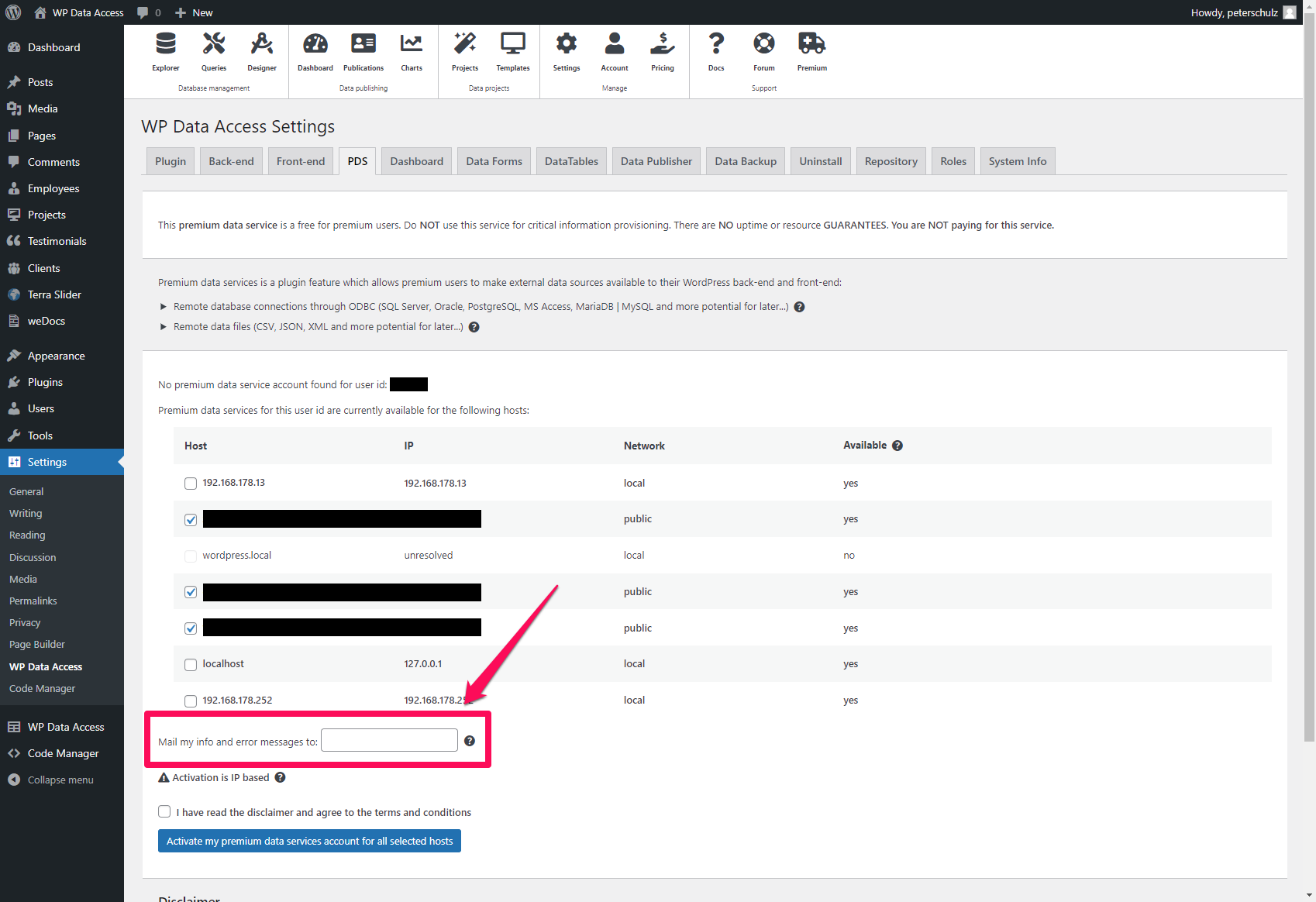
By default, errors are communicated through the Data Explorer. However, you can register your email address with your account to receive messages directly. This feature is highly recommended if you use the automatic update feature for remote data files, as these updates run unattended. Receiving results via email allows you to identify and address errors immediately.
Understanding errors
When updating a data file, the synchronization process may encounter an error. The question is not if this will happen, but when.
Start by reading the error message provided. In many cases, the message will help clarify and solve the issue. For example, the error in the screenshot above indicates that the value for the Name field (the second field in the CSV) on line 15 is too long. With this information, you can check the problematic value and take appropriate action.
Please note that the line number provided in the error message is not always exact. Since a CSV file usually contains a header line that is not counted as a data row, the issue might actually be on line 16, not 15.
If you receive an error you do not understand, please get in touch.
Fixing errors
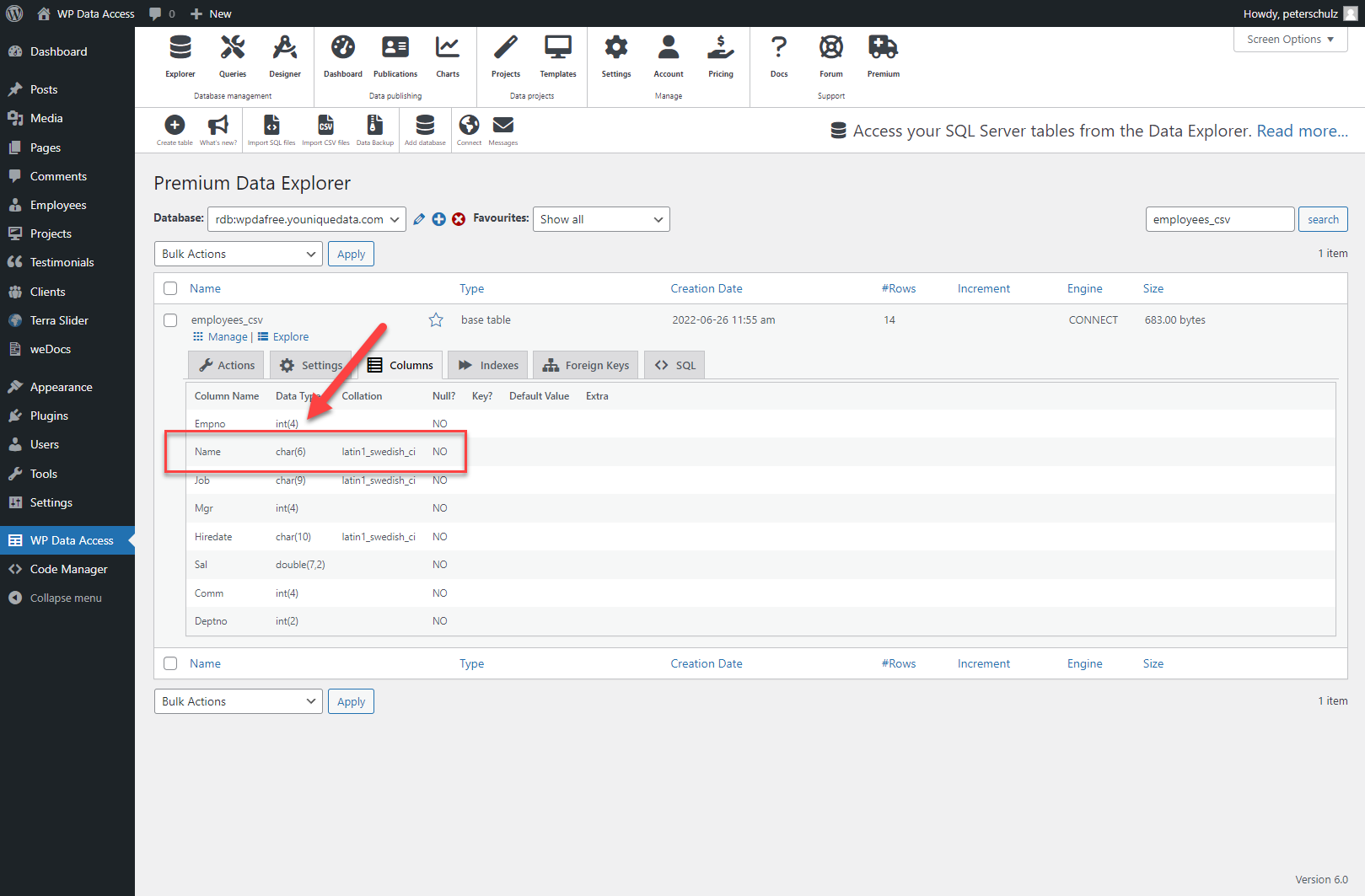
Let's use the error mentioned in the previous section as an example. When the table was created from the CSV file, the Name column was defined as CHAR(6). A new value in the CSV has a length of 10, which is too long for this column.
There are several ways to resolve this issue:
- Update the CSV file. This is often not a practical solution.
- Drop the table and recreate it. There is nothing inherently wrong with this option, but you must be cautious of other resources that depend on this table. This method only works if your new table has identical table and column names. Additionally, it may lead to downtime, as users will be unable to access the table from the moment you drop the old one until the new one is created.
- Update the table definition to allow longer values in the Name column. This is a more elegant solution that avoids downtime, as the system will continue to use the old CSV file until the issue is resolved.
If you are familiar with SQL, you can use the Query Builder to execute an ALTER TABLE command. If you are not, click the Manage link for the table returning the error, then click the ALTER button. This will load your table into the Data Designer, where you can change the maximum length of the Name column. It's a good idea to give it extra space for future updates. You might also consider changing the column type to VARCHAR for more efficient storage.
After making your changes, click Save Table Design. The column will be highlighted in orange. Finally, click the ALTER TABLE button to apply the new column definition. This will allow longer values, and the orange highlighting will be removed.