Appearance
MySQL | MariaDB


Your WordPress installation connects to a MySQL or MariaDB database, which is usually installed on the same server as your web server. Custom tables and views are often created within the WordPress database. WP Data Access supports creating and using tables and views in your WordPress database, as well as in other local and remote databases.
💡 Local Databases
A local database (also called a schema) is located on the same physical server as your WordPress database. WP Data Access can connect directly to other local databases.
📌 From the plugin's perspective, a local database runs in the same database instance as your WordPress database. If your server runs multiple database instances, a connection to a different instance is treated as a remote connection.
💡 Remote Databases
A remote database is located on a different physical server than your WordPress installation, or it is a local database running in a separate instance.
Connecting to a Local Database
Local databases are accessible in the Data Explorer, as shown below. The plugin only displays databases to which the user has access.

The plugin allows users to create and drop databases from the Data Explorer in the WordPress dashboard. To perform these actions, the plugin requires access with the necessary privileges (e.g., CREATE and DROP).
✨ Example: Grant access to the local database wpda_demo:
sql
grant all privileges on wpda_demo.* To 'wordpress'@'localhost';📌 Local database management is typically not supported by ISPs, but you can use this feature on local and self-hosted servers.
Connecting to a Remote Database
Remote databases are also accessible in the Data Explorer, as shown below.
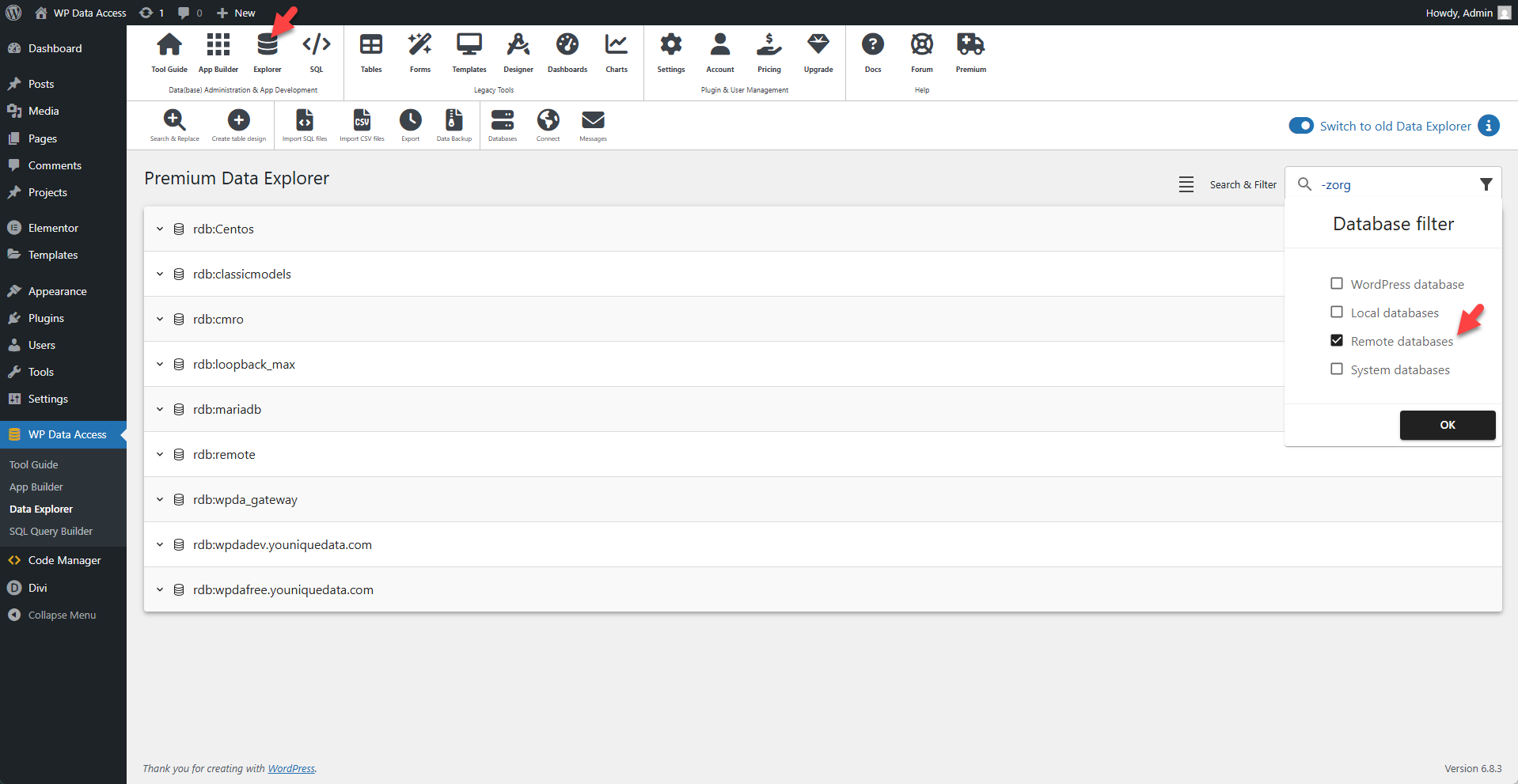
Setting up a Remote Database Connection
You must add remote database connections manually.
- Launch the Data Explorer.
- Click the Databases icon on the toolbar.
- Navigate to the Create Remote Database Connection tab.
- Fill out the form and test your connection.

- The database name is for your own administrative use to identify the remote database. The plugin automatically adds the prefix rdb: to this name.
- The MySQL username must have access to the database (or schema) entered in the MySQL schema field. In the example above, MySQL user wpda must have access to the wpda schema.
- Once saved, the remote connection becomes available in all database dropdown lists.
- After a connection is established, all plugin features available for local databases are also available for the remote database (provided the remote account has the necessary privileges). You can access the remote database from the dropdown list at the top of the main Data Explorer page.
✨ The remote connection defined above is equivalent to this MySQL command-line instruction:
sql
mysql -h 1.2.3.4 -u wpda -p -P 3306 wpda
Enter password: wpda
📌 Restrictions
A remote database must be a MySQL or MariaDB database. The plugin supports connections to other database management systems through the MariaDB CONNECT storage engine using ODBC and JDBC. (read more…)
Remote Connection Management
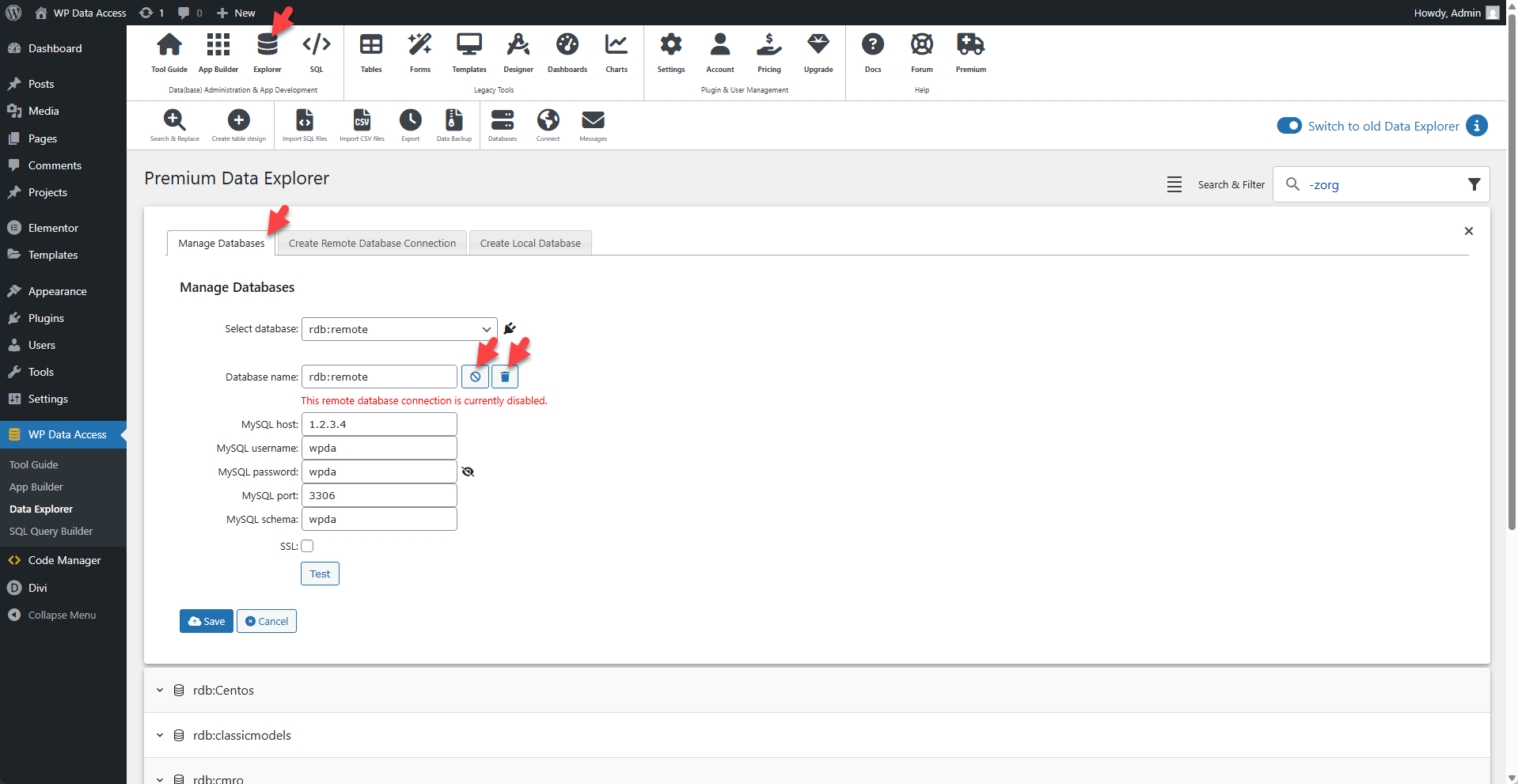
The Data Explorer allows users to test, disable, enable, modify, and delete remote database connections directly from the WordPress dashboard.
Restricting access
Since your web server has a public IP address, you can use that address to improve security.
✨ Example: The following SQL statement ensures that only users connecting from your web server are permitted:
sql
grant select, insert, update, delete on remote_schema.* To 'remote_user'@'1.2.3.4';📌 We advise implementing this even for non-sensitive data.
📌 The example above prevents DDL and DCL actions, which can be added if required.
Sensitive data
To manage sensitive data, use a local database or a secured (SSL) connection to a remote database.
Remote SSL connections
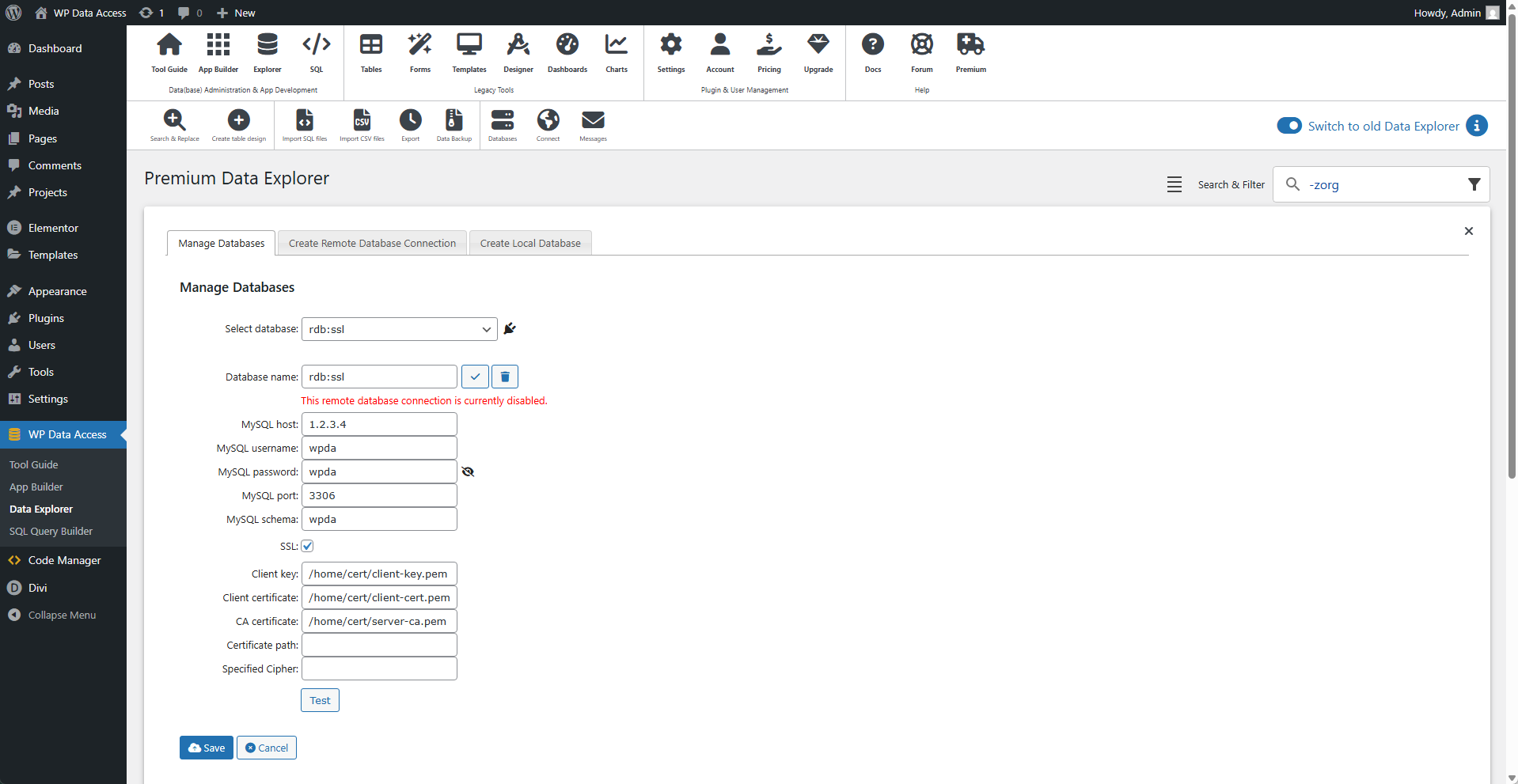
To use SSL, the plugin needs access to the client key, client certificate, and CA certificate. Ensure these files are readable by the plugin.
Once activated, SSL connections are available in the same way as standard connections. All tools support SSL connections, provided the remote account has the necessary privileges.
Risks
By default, remote data is sent over the network in plain text, including your database username. Only your password is encrypted. Use SSL to prevent sending your username and data over the network unencrypted.
If you are publicly displaying data retrieved from a remote database, sending it in plain text may not be an issue. However, you should not use an unsecured remote database connection to manage sensitive data.
Common Issues
In some cases, a connection to a remote database is established, but no tables are returned. The most common reason for this is insufficient user privileges. Please verify the following:
- The IP address of your WordPress server is allowed to connect.
- The user has access to the schema specified in your remote database connection.
- The user has the necessary privileges for the tables within that schema.