Appearance
🚀 START HERE
Our premium data service allows plugin users to access remote databases (SQL Server, PostgreSQL, Oracle, MS Access, MariaDB, and MySQL) and remote data files (CSV, JSON, and XML) from both the WordPress back-end and front-end.
The plugin can handle multiple premium data servers. Each server must be enabled individually in your WordPress installation before use.
The premium data server wpdafree.youniquedata.com is available at no additional cost to all premium users. While this service is free, it comes with no uptime or resource guarantees. Please use it for non-critical information, testing, or as a gateway to transfer external data to your WordPress database.
Enabling The Service
- Start WP Data Access and click the Settings icon on the toolbar. Then, navigate to the PDS tab.
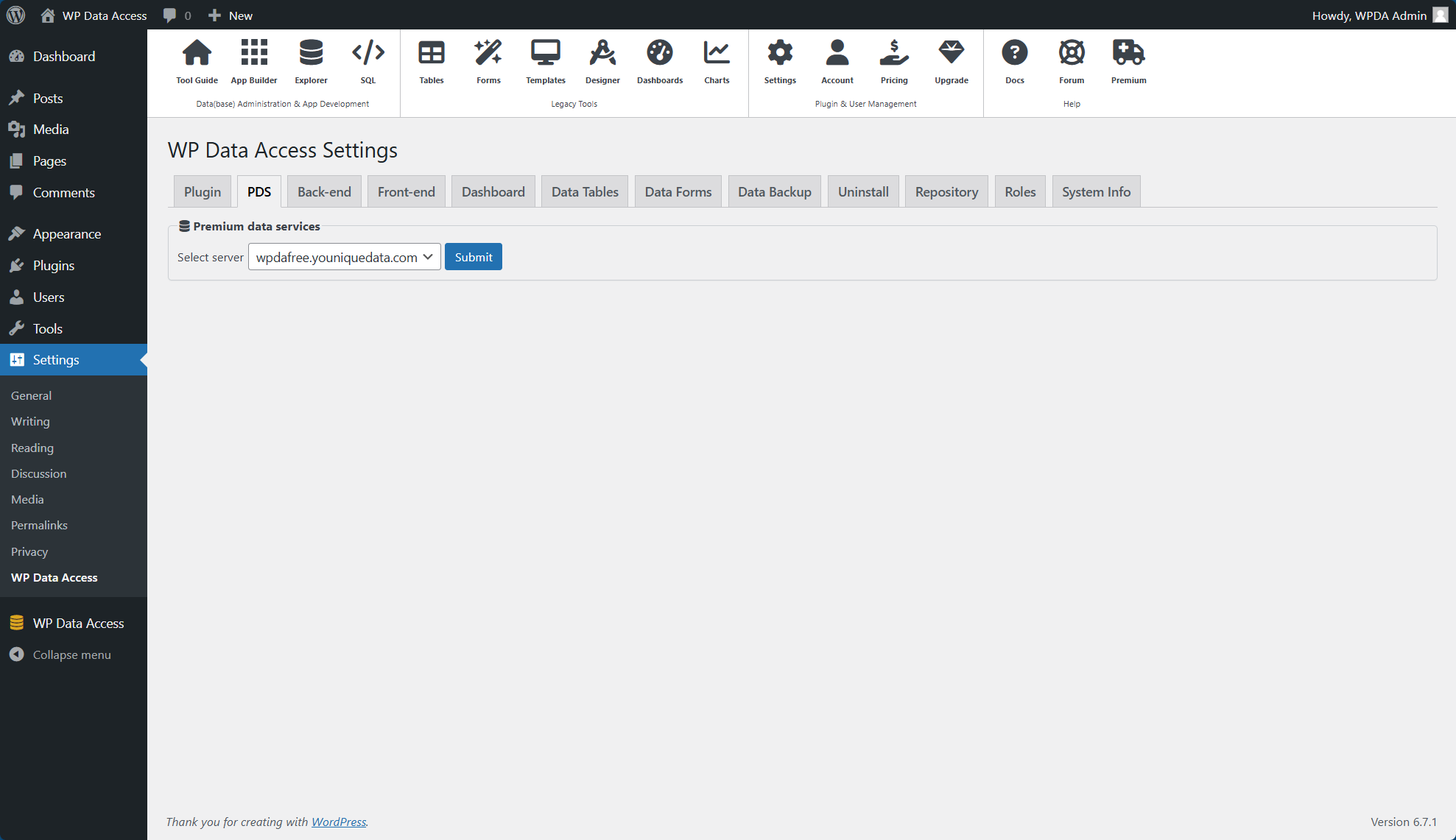
- Select the server
wpdafree.youniquedata.comand click the Submit button. This sends a request to our server to validate your active account. If your account is valid, you will see a page to set a password for your remote database connection.
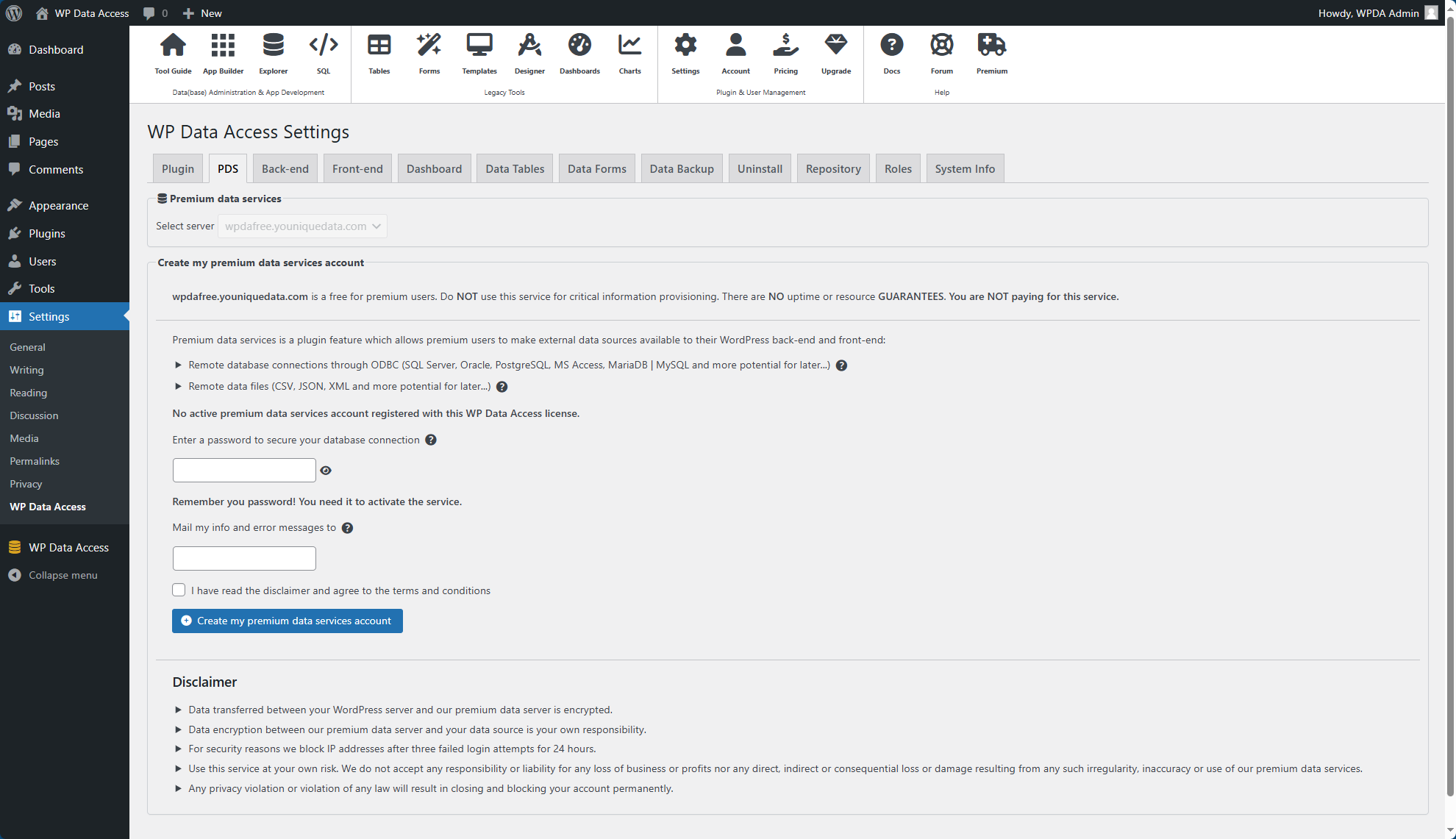
- Enter a strong password and be sure to remember it, as you will need it to establish the connection. Use the icon to view your password before submitting.
📌 Some activities on our premium data server run unattended. You can check for any errors in your Data Explorer. Enter an email address if you also wish to receive the results of unattended actions via email.
- Confirm the disclaimer and click the Create my premium data services account button.
This will create your database account on the selected premium data server. When the account is created successfully, you are sent to a page that allows you to enable the service on your WordPress server.
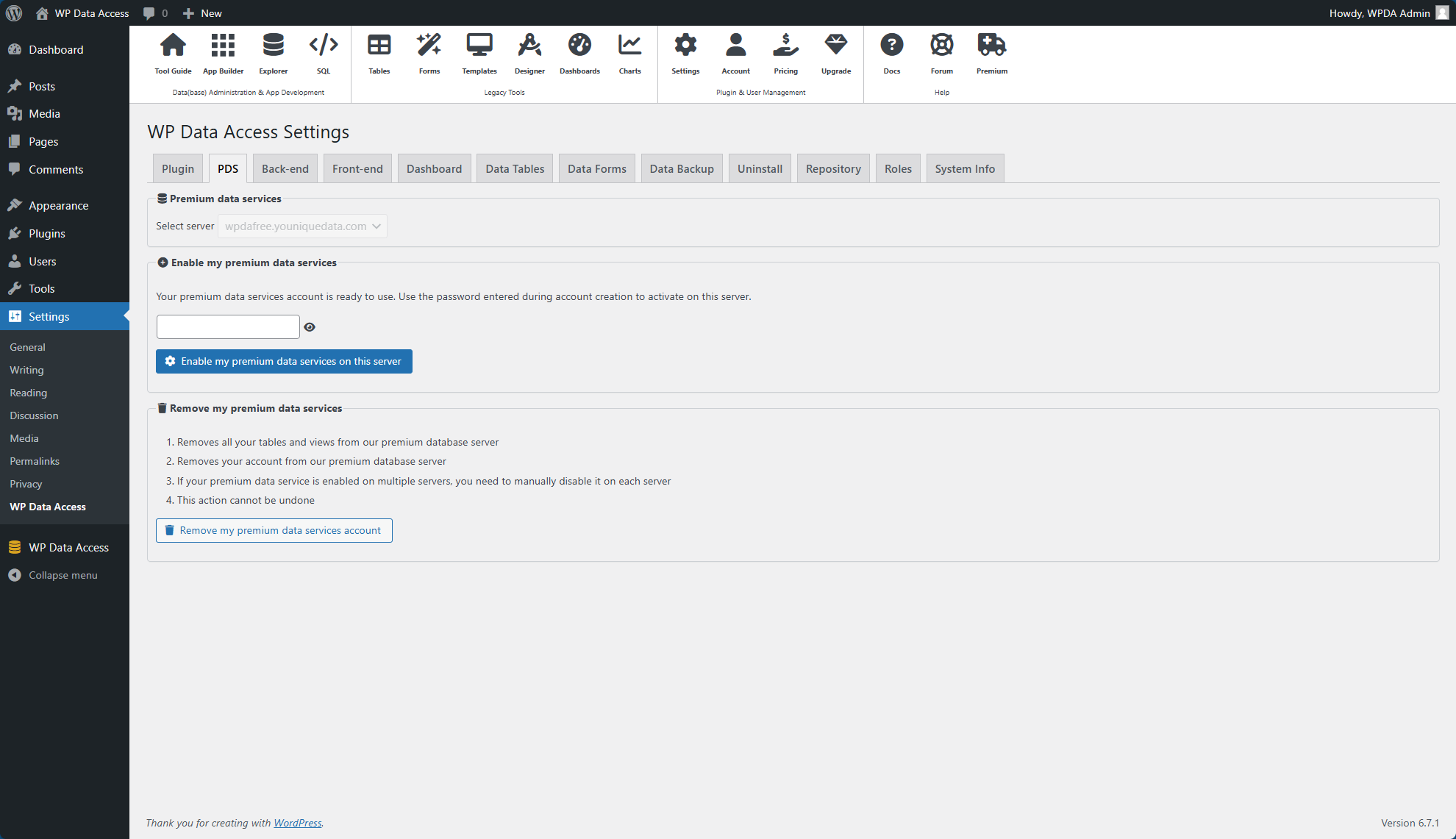
- Enter the password you created during account setup and click the Enable my premium data services on this server button.
A remote database connection will be added to your WordPress server. If you have a multi-domain license, you must complete this step on each server individually.
Congratulations! Your premium data service is now ready to use. 🙂
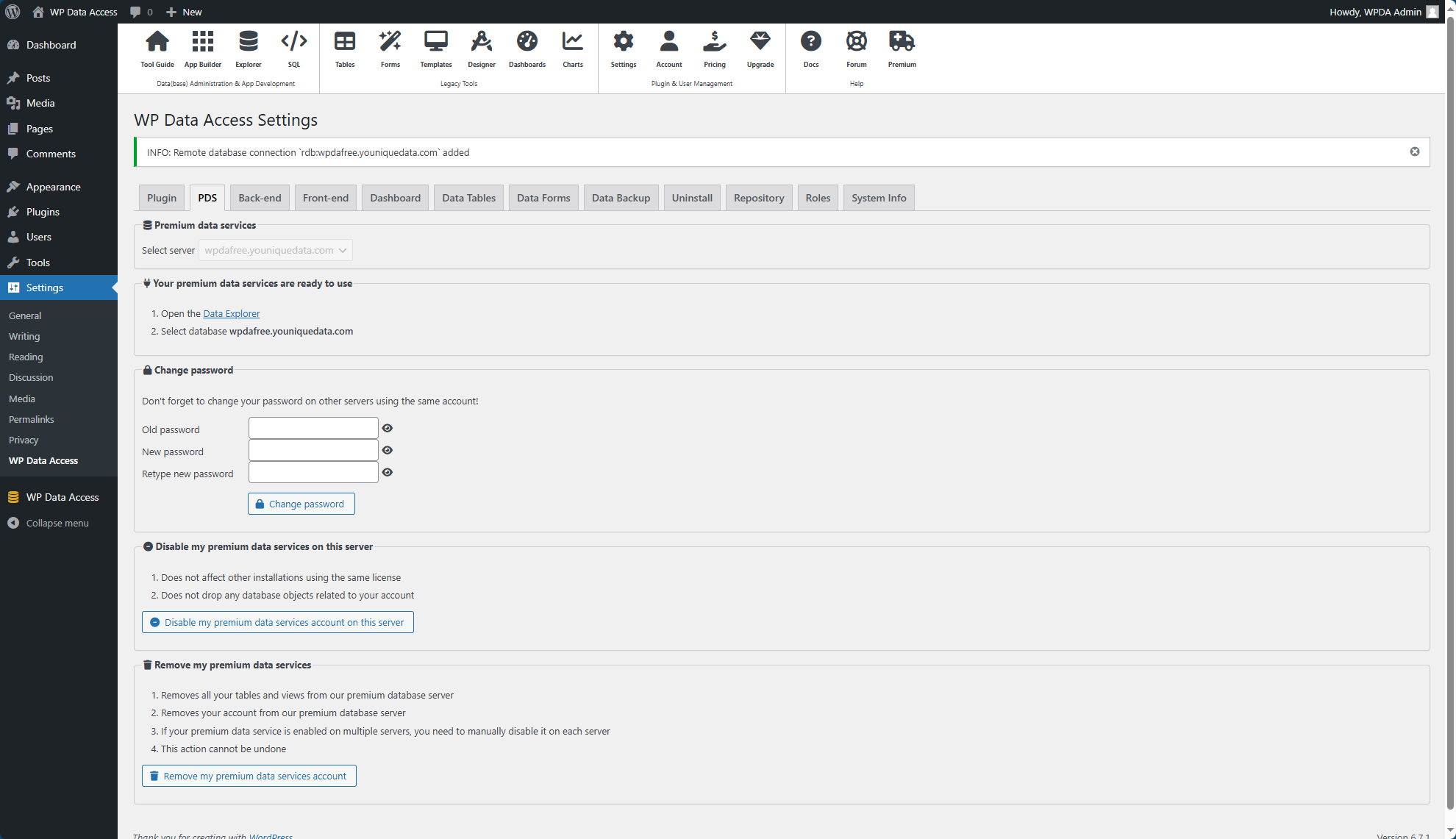
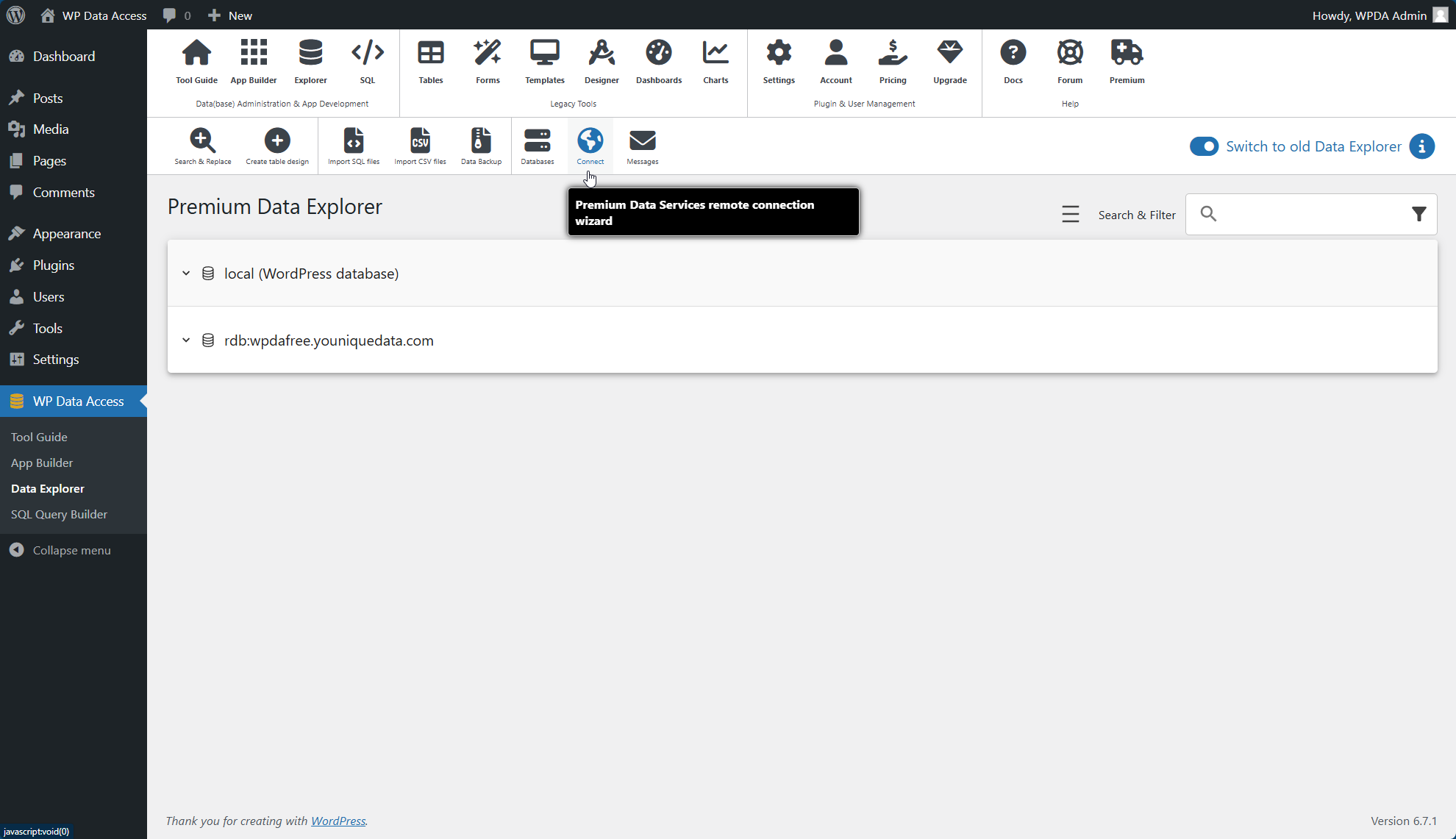
Open your Data Explorer and select database wpdafree.youniquedata.com. You can now start adding remote database connections and data files by clicking the connect icon.