
Appearance
Public URLs
For our server to access your data file, it must be available at a public URL. It doesn't matter how you provide access, as long as the link returns only the raw content of your data file. When you share a file on Dropbox, OneDrive, Google Drive, or other cloud storage services, the default link often redirects to a web viewer. This type of link cannot be processed by our server. Your link must return the file content directly.
📌 Always test your URL in a browser before submitting it!
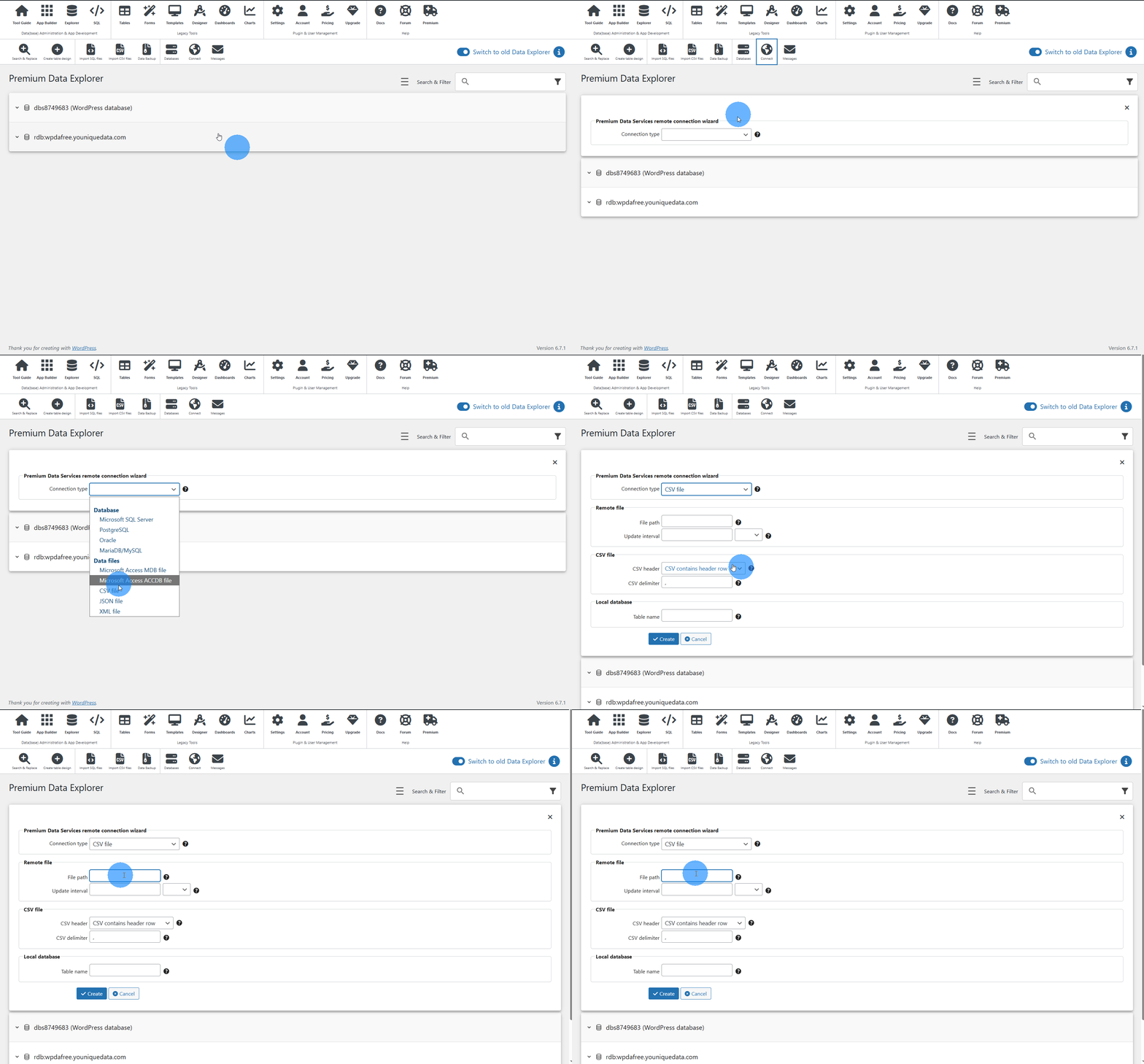
Dropbox
Public Link From Dropbox
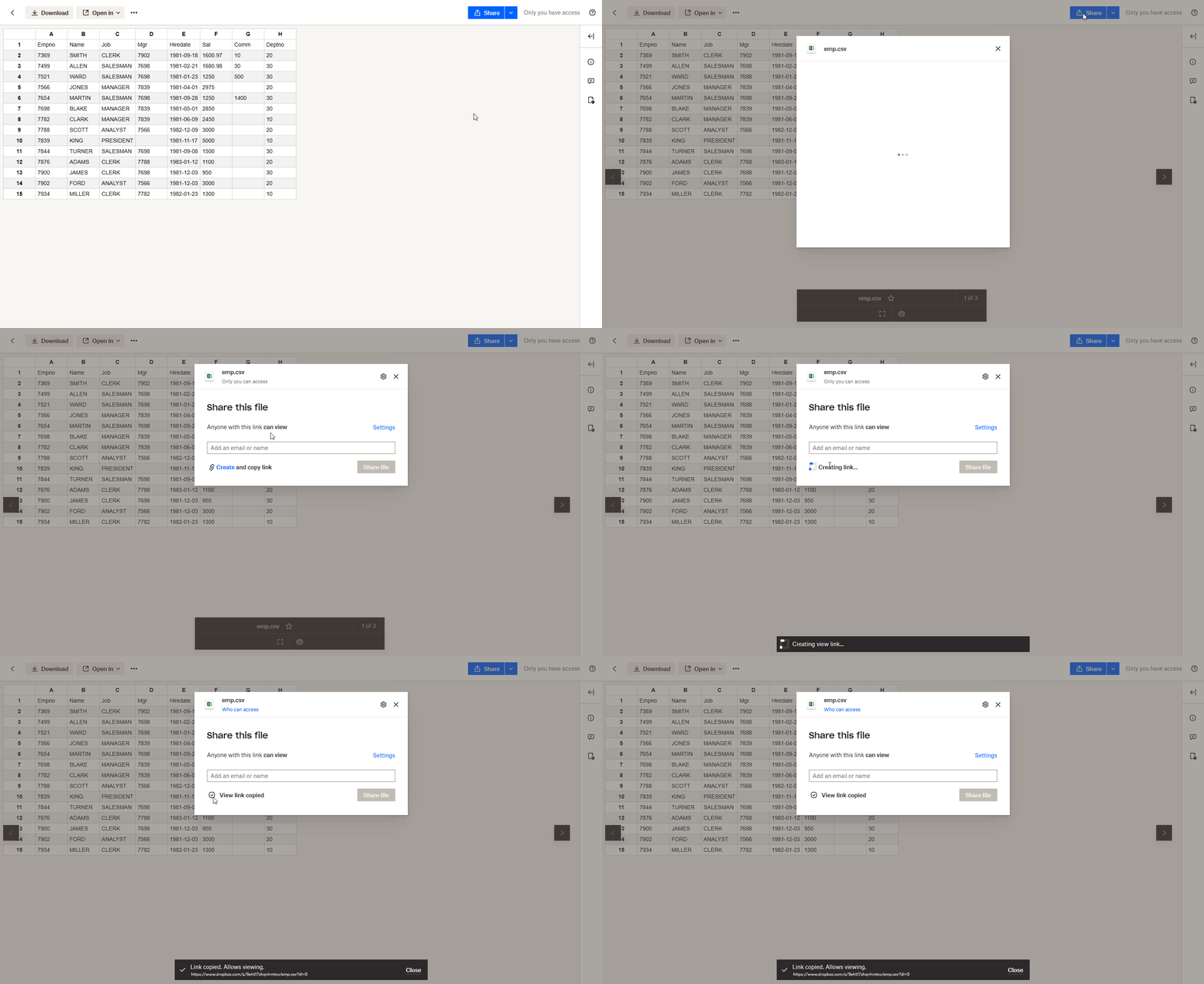
Making a file available from Dropbox is super easy! You just need a Dropbox account. Here is an example for sharing a CSV file publicly from Dropbox:
- Copy your CSV file to a Dropbox folder.
- Create a public shared link:
- In your browser: Click the three dots next to the CSV file > Share > Share with Dropbox > Create a link > Copy link.
- In File Explorer (Desktop App): Right-click the CSV file > Share > Create a link > Copy link.
Use Public Dropbox Link in WP Data Access
- The copied link will look like:
https://www.dropbox.com/s/5e………kj/filename.csv?dl=0 - Change the parameter
?dl=0to?dl=1 - Your modified link will now look like:
https://www.dropbox.com/s/5e………kj/filename.csv?dl=1 - Use this modified link as your file path to directly access your CSV file. Test it in a browser first!
This process works similarly for MS Access, JSON, and XML files.
Google Sheets
Public link from Google Sheets
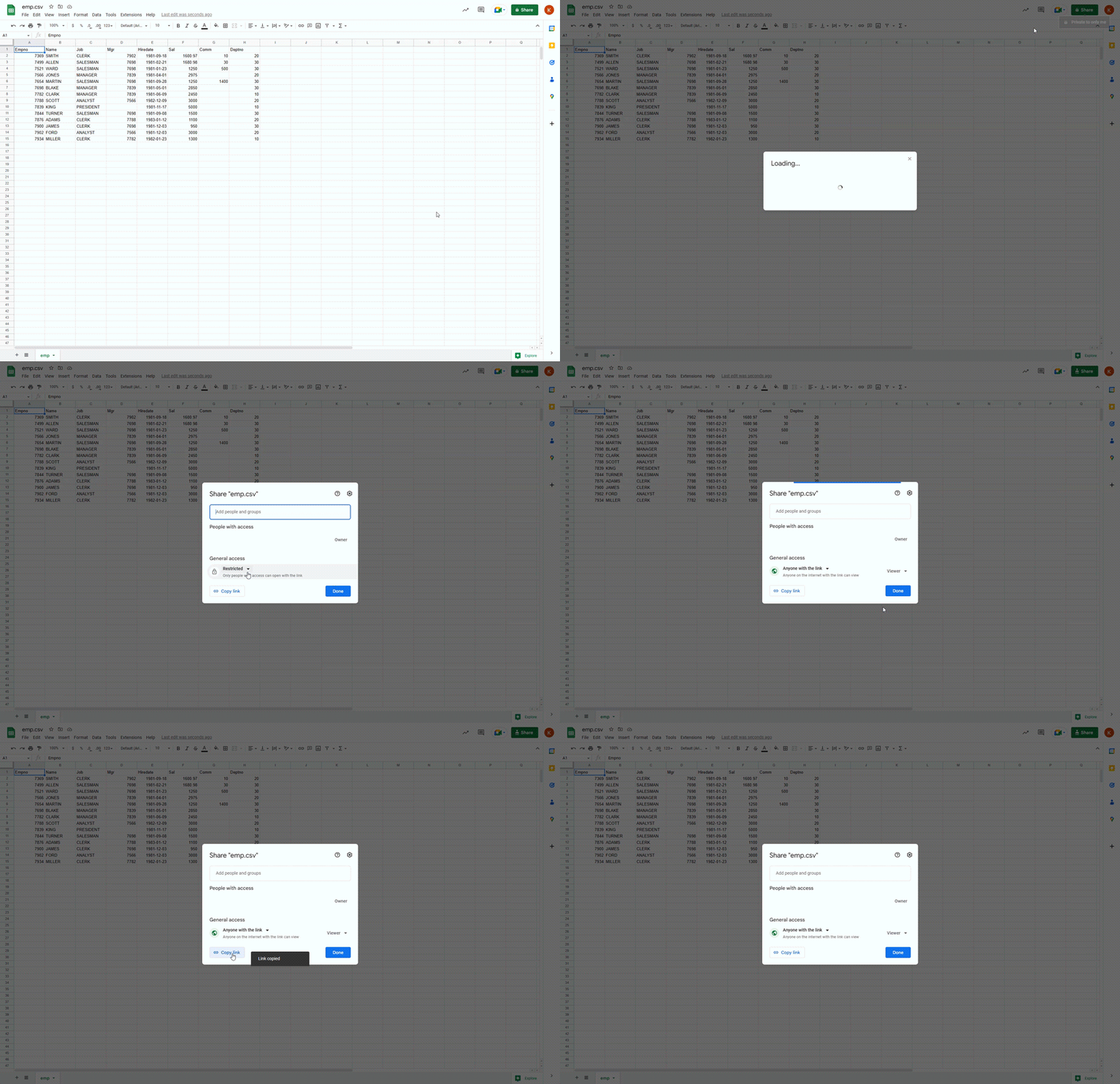
It is very easy to upload and automatically synchronize your data from Google Sheets! Just follow these steps:
- Create a public shared link:
- In your browser: Open the sheet > Click the Share button in the top-right corner.
- In Google Drive: Right-click the sheet > Share.
- Under "General access," select Anyone with the link.
- Set the role to Viewer.
- Click Copy link.
Use Public Google Sheets Link in WP Data Access
- The copied link will look like:
https://docs.google.com/spreadsheets/d/1e………zE/edit?usp=sharing - Change the end of the URL from
/edit?usp=sharingto/export?format=csv - Your modified link will now look like:
https://docs.google.com/spreadsheets/d/1e………zE/export?format=csv - Use this modified link as your file path to directly access your Google Sheet as a CSV file. Test it in a browser first!
📌 This method makes accessing Google Sheets very simple, but it only works for sheet data exported as CSV. It does not work for MS Access, JSON, or XML files.
New Lines Errors in Google Sheets
A new line character in a cell will result in an error because, in a CSV file, a newline character marks the end of a row. You can either manually remove all newline characters or use the script below to remove them from your active sheet automatically.
JavaScript
function removeAllNewLines() {
	// Remove all new lines from active sheet
	var sheet = SpreadsheetApp.getActiveSpreadsheet();
	var range = sheet.getDataRange();
	var values = range.getValues();

	for (var i = 0; i < values.length; i++) {
		for (var j = 0; j < values[i].length; j++) {
			values[i][j] = values[i][j].toString().replace(/\n/g,'');
		}
	}

	range.setValues(values);
}
Notes
- A public link is available to anyone who has it. Ensure your link does not contain sensitive data and that the permissions do not allow editing.